Introduction
Losing the iPhone Mail app can significantly disrupt your communication routine. Whether it’s due to unintentional deletion, system glitches, or after an iOS update, the absence of the Mail app can be a real hassle. Fortunately, getting it back is a straightforward process. In this guide, we’ll help you successfully retrieve the Mail app and restore your iPhone’s communication capabilities.

Reasons Your iPhone Mail App May Disappear
Understanding why the Mail app might vanish can help prevent future occurrences. Accidental deletions happen often, particularly when rearranging or hiding apps on your screen. Moreover, iOS updates sometimes introduce temporary changes affecting app visibility. Occasionally, minor system glitches can also cause apps to go missing. By identifying these causes, you can minimize the risk of it happening again.
Accidental Deletion
Deleting apps accidentally is a common issue. A quick motion on your home screen can remove an app inadvertently. To ensure it’s not just hidden, use the App Library to search for the Mail app.
Effects of iOS Updates
iOS updates can lead to changes in how apps appear on your phone. Occasionally, such updates can cause apps to move or vanish from the home screen, making it seem like they’re missing.
System Glitches
System glitches can sometimes affect app displays, temporarily removing them. Although this is rare, it can still impact your device’s functionality.
How to Reinstall the iPhone Mail App
If the Mail app has disappeared, reinstalling it can be done quickly. Follow these steps to ensure a smooth reinstallation.
- Using the App Store for Reinstallation:
- Open the App Store on your iPhone.
- Type ‘Mail’ into the search bar and select the Apple Mail icon.
-
Tap the download icon to reinstall.
-
Checking Device Storage:
-
Ensure adequate storage space for the installation by visiting Settings > General > iPhone Storage.
-
Ensuring Internet Connection:
- Confirm your device is connected to Wi-Fi or cellular data to facilitate the download.
After completing these steps, the Mail app should reappear, allowing for email account setup.
Setting Up Your Email Accounts on the Reinstalled Mail App
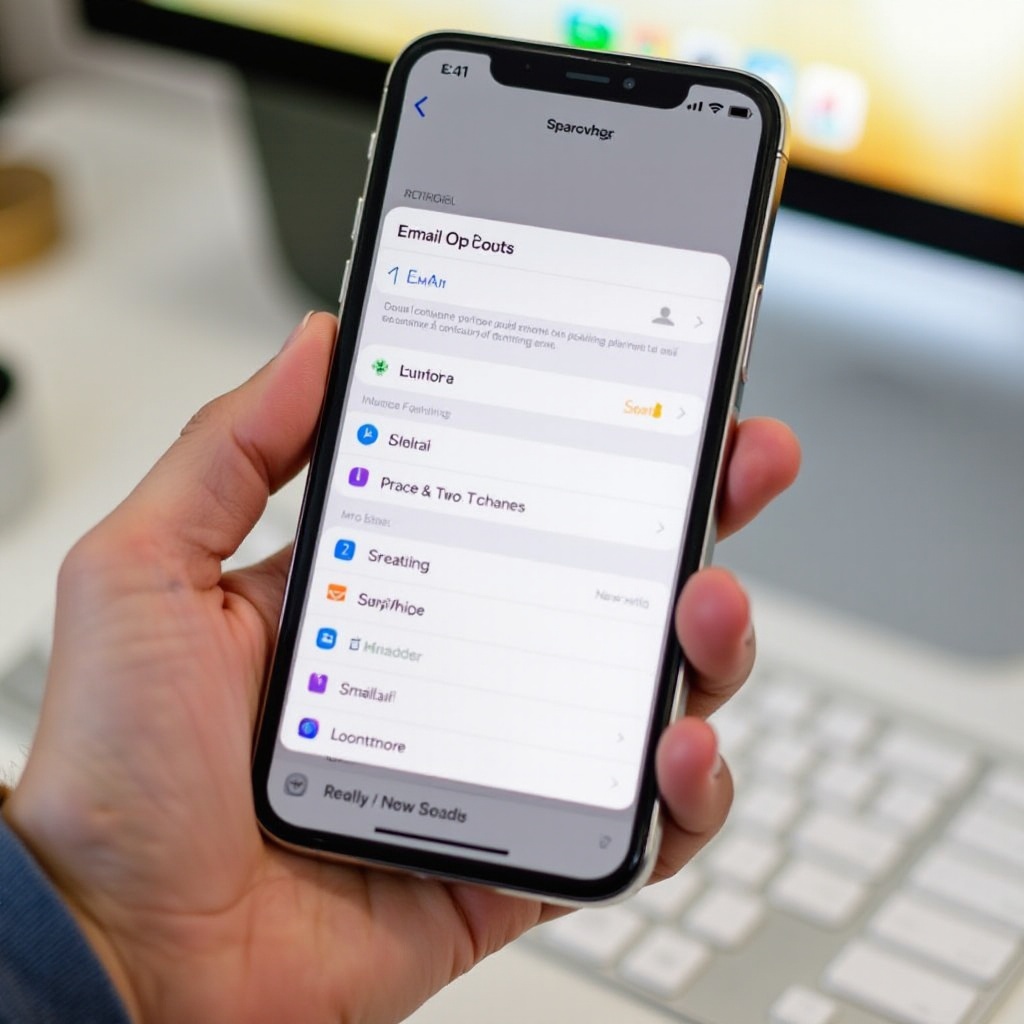
Once the Mail app is back, setting up your email accounts is essential for restoring full functionality. Here are the steps you’ll need to follow:
- Adding Email Accounts:
- Launch the Mail app. You’ll be prompted to add an account immediately.
-
Select your email provider (iCloud, Google, Yahoo, or another) and enter your login credentials.
-
Configuring IMAP and POP Settings:
-
For manual setups, ensure your incoming and outgoing server settings are correct. Check your provider’s support site for these settings.
-
Syncing Email Accounts:
- Go to Settings > Accounts & Passwords.
- Tap the email account and adjust sync settings, like the date range of messages to sync.
Troubleshooting Common Problems
Even after reinstalling, some users may encounter issues with the Mail app. Let’s address some common troubleshooting steps.
- Resetting Home Screen Layout:
-
Navigate to Settings > General > Reset and choose ‘Reset Home Screen Layout’ to arrange apps in default order.
-
Verifying iOS Updates:
-
Ensure your phone is running the latest iOS by visiting Settings > General > Software Update.
-
Rebooting the Device:
- Restart your iPhone by holding down the power button. This often resolves minor issues and can restore functionality.
With these solutions, your Mail app should function seamlessly, leaving you free to focus on communication.
Strategies for Preventing Future Disappearance
To reduce the risk of losing the Mail app again, employ these strategies:
Organizing Apps with the App Library
Use the App Library to keep apps organized and easily accessible, which minimizes accidental deletions.
Performing Regular iOS Updates
Keep your device up to date. Regular software updates help fix bugs that could potentially affect app performance.
Adjusting App Restrictions
Under Settings > Screen Time > Content & Privacy Restrictions, ensure that app deletion restrictions align with your preferences.
By taking these steps, you can protect your Mail app and other essential apps from being inadvertently removed in the future.
Conclusion
Retrieving and setting up your iPhone Mail app does not have to be complicated. By following the steps outlined, you can swiftly restore this vital app and maintain your connection to the outside world. Understanding why apps disappear and implementing preventive measures ensures smoother device management and minimizes the chances of recurrence.
Frequently Asked Questions
Can I recover deleted emails after reinstalling the Mail app?
Yes, unless permanently removed, your deleted emails should still be accessible as they are stored on your mail server.
Will reinstalling the Mail app affect my email data?
No, reinstalling will not affect your emails or settings. Your email data is stored on the server of your email provider.
How can I prevent the Mail app from disappearing again?
Use the App Library for organizing apps, perform regular updates, and manage app restrictions properly to avoid accidental deletions.