Introduction
Printers are indispensable in home and office settings, often serving as vital tools for both personal and professional tasks. However, they can become sources of frustration when they fail to function properly, especially when they refuse to print ink despite appearing operational. This guide aims to illuminate the possible reasons behind such issues and provides practical solutions to restore your printer’s performance.
Understanding Printer Ink Issues
Delving into the intricacies of printer function is crucial to diagnose and fix ink-related problems. Recognizing how printers utilize ink and identifying common symptoms of ink issues can significantly aid in troubleshooting.
How Printers Utilize Ink
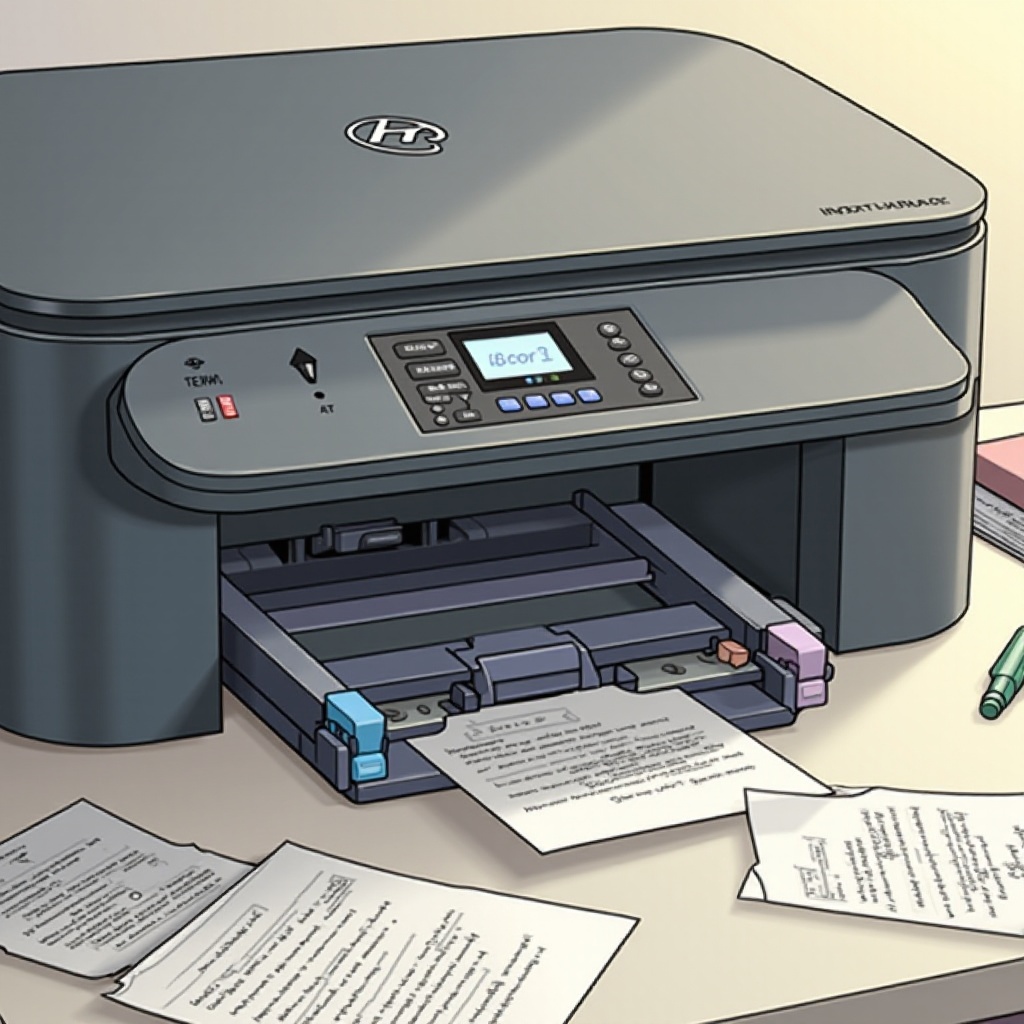
Printers operate using a complex interaction between ink cartridges and the devices’ nozzles. The ink cartridge supplies liquid ink, while the printhead sprays this ink in meticulously crafted patterns to form text and images. Disruptions at any stage of this process can lead to printing problems. Understanding these basics equips users with better troubleshooting skills.
Common Symptoms of Ink Printing Problems
Symptoms of printing issues vary from streaky or faded prints to missing colors or completely blank pages. Each symptom could highlight diverse underlying factors, such as low ink levels or clogged printheads. Recognizing these signs enables users to address the specific issues effectively.
Armed with this groundwork, one can proceed to check for common causes and conduct preliminary diagnostics that may solve the problem quickly.
Common Causes and Initial Checks
Before resorting to complex procedures, addressing basic factors can often resolve ink printing issues without major interventions. These initial checks should always be your first step.
Low or Empty Ink Cartridges
First, verify that your printer cartridges are not depleted. While modern printers often alert users about low ink levels, it’s advisable to double-check manually. If the cartridge is empty, replace it. Occasionally, a recently replaced cartridge may require an ink level reset to function correctly.
Clogged Printheads
Clogged printheads frequently cause ink not to print correctly. When ink dries up in the nozzles, it obstructs the flow, leading to poor print quality. Running the printhead cleaning utility through your printer’s software often resolves this issue.
Incorrect Printer Settings
Incorrect settings may inadvertently obstruct ink flow. Verify the settings on your device to ensure the printer is configured to print in color when necessary and that quality settings correspond to your needs.
Upon completing these basic checks, more systematic troubleshooting steps can be employed to resolve persistent issues.
Step-by-Step Troubleshooting Guide
For problems not resolved through initial checks, a more systematic approach may be necessary to identify more complex causes and solutions.
Verifying Ink Cartridge Status
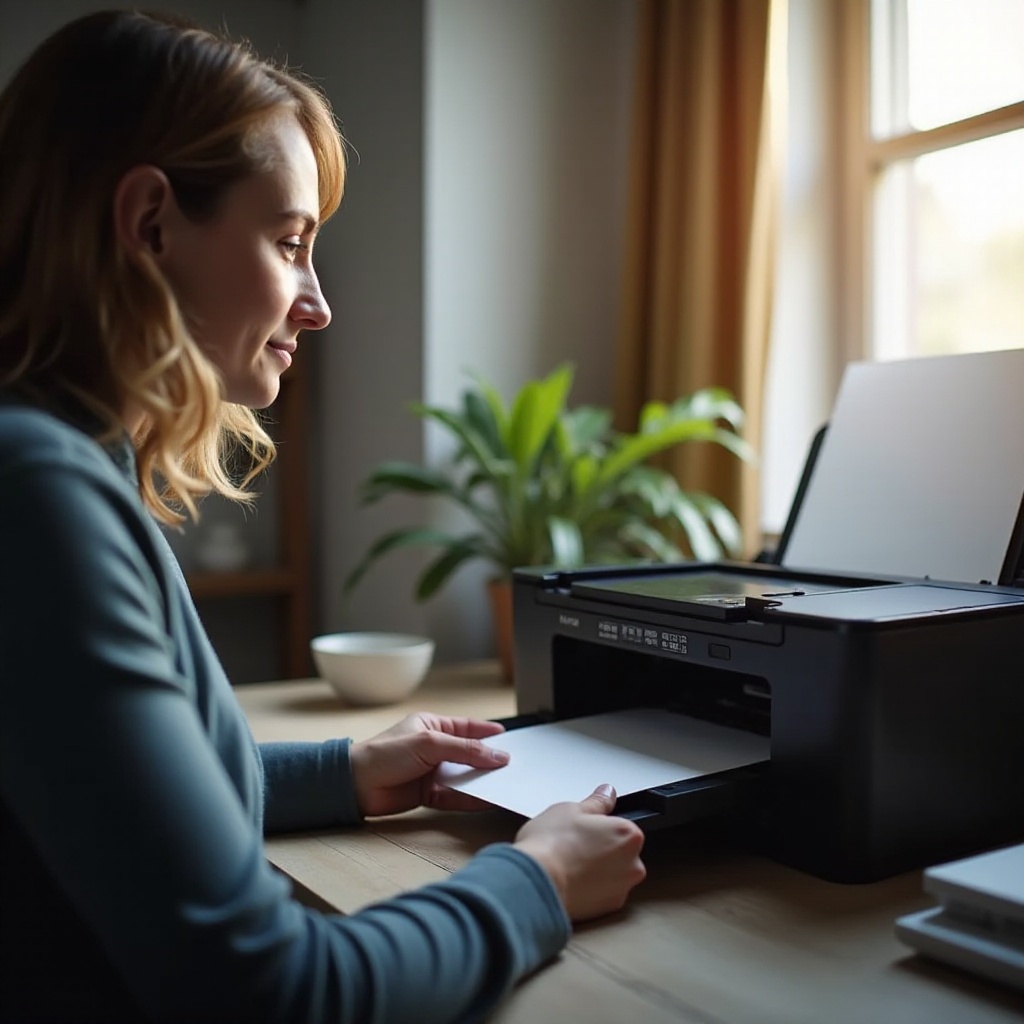
- Carefully open your printer to access the cartridges.
- Remove and inspect the cartridges to confirm proper ink levels and placement.
- Firmly reinstall the cartridges, ensuring they click into place.
- Conduct a test print to verify ink distribution.
Cleaning and Maintenance of Printheads
- Locate the maintenance software via your PC.
- Initiate a printhead cleaning cycle.
- Should issues persist, manual printhead cleaning with lint-free cloths and distilled water is advisable.
- Allow the printhead to dry thoroughly before reinstallation.
Ensuring Proper Printer Settings
- Access and check your PC’s print settings.
- Confirm that options such as duplex printing and paper settings match your printing requirements.
- Adjust settings to ensure you are not inadvertently in ‘Draft’ mode unless appropriate.
With these steps, most ink-related issues should resolve. If problems remain, further technical examination may be necessary.
Advanced Troubleshooting and Technical Solutions
Should the issue persist despite following the outlined steps, delving deeper into the technical aspects may be required to restore full printer functionality.
Updating Printer Drivers and Firmware
- Visit the official website of your printer manufacturer to download the latest drivers.
- Follow installation instructions to update drivers on your computer.
- If prompted, update any available firmware, ensuring the printer remains connected throughout.
Running Printer Diagnostic Tests
- Utilize the diagnostic tools provided within your printer’s management software.
- Address any detected issues, like alignment or system errors, as indicated by the diagnostic results.
Maintaining current software is instrumental in preventing many common technical hitches, but ongoing maintenance is equally important.
Preventive Maintenance and Best Practices
Regular maintenance and adopting the right practices ensures longevity and consistent printer performance, reducing the likelihood of future complications.
Regular Printer Maintenance Routines
- Activate your printer semi-regularly to help prevent ink drying.
- Clean printheads and inspect cartridges on a monthly basis.
- Check for available software updates every quarter to maintain performance.
Selecting Quality Ink and Supplies
- Opt for cartridges from trusted manufacturers to ensure quality.
- Refrain from refilling cartridges excessively to avoid damage.
- Stick to the types of ink recommended by your printer’s manufacturer for optimal results.
A disciplined maintenance routine coupled with the use of quality supplies extends your printer’s lifespan remarkably.
Conclusion
Printers play an integral role in both personal and professional spheres, and disruptions, especially with printing ink, can cause significant delays. This guide aims to arm you with the knowledge to troubleshoot these issues effectively. Regular upkeep through maintenance and software updates assures your printer’s durability and consistent performance, minimizing future disruptions.
Frequently Asked Questions
How do I know if my ink cartridges are empty?
Most printers notify users of low ink levels. Additionally, you can manually inspect ink levels by removing the cartridge.
Can clogged printheads cause permanent damage?
Clogged printheads usually do not cause permanent damage but can lead to poor print quality if not addressed. Regular cleaning prevents these issues.
How often should I perform printer maintenance?
Conduct monthly cleanings and quarterly software updates to keep your printer in optimal condition.