Introduction
Ejecting a disk from your PS4 can be straightforward, yet it is a crucial operation that every owner should be familiar with. Proper disk handling ensures the longevity of your gaming console and avoids potential damage. As gaming technology evolves and digital content expands, understanding how to manage physical disks correctly is vital for enhancing your gaming experience, particularly when issues surface.
This guide will walk you through the essential steps for safely and efficiently ejecting disks from your PS4. Whether using menu options, physical buttons, or troubleshooting stuck disks, we provide comprehensive solutions.
Understanding the PS4 Disk Ejection System
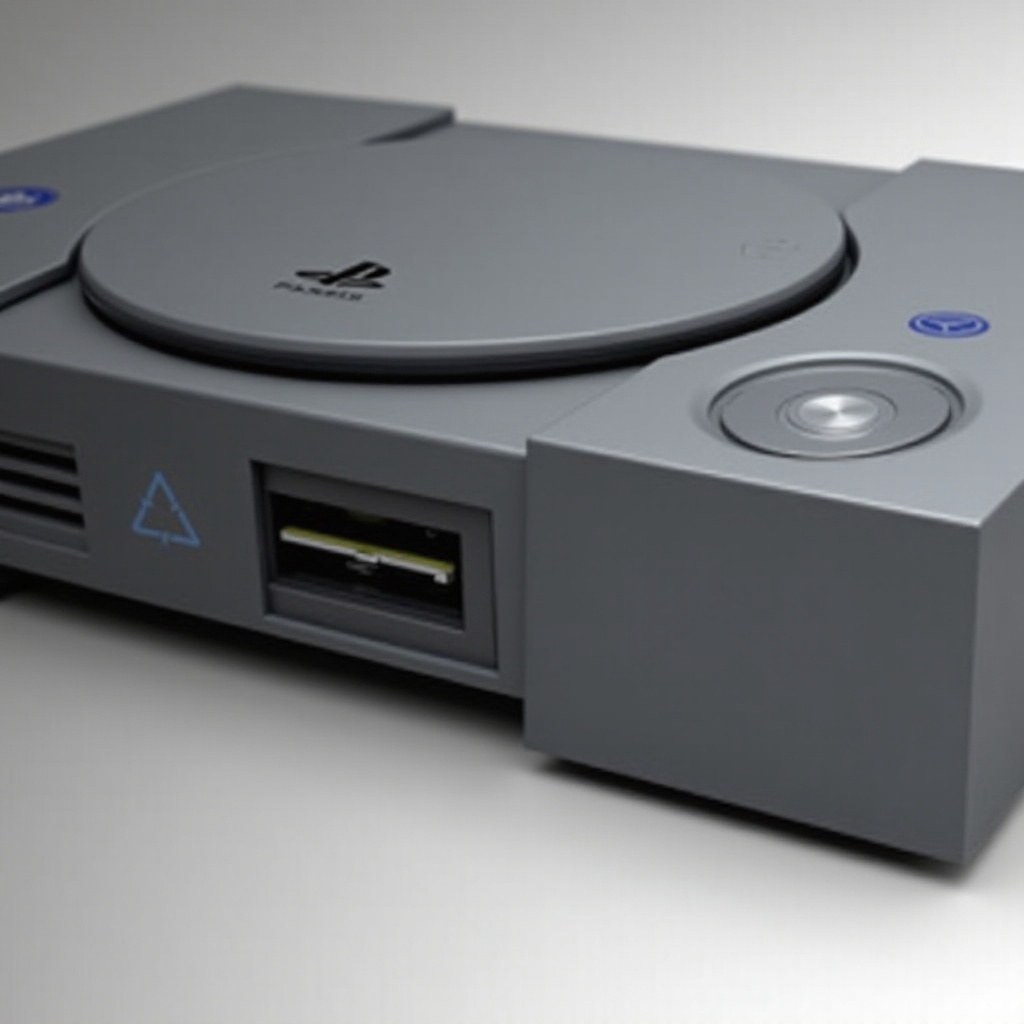
Knowing how the PS4 disk drive operates is crucial for proper ejection. The PS4 hosts a slot-loading drive designed to automatically pull in disks and release them upon command. Familiarity with this mechanism helps prevent unnecessary wear and damage.
When inserting a disk, exert gentle pressure and handle with care. This slot-loading mechanism constantly checks for the ejection command, managed through multiple methods. Mismanagement during insertion or removal may lead to disk or drive damage. Thus, recognizing the importance of careful handling prevents such issues. Now, let’s dive into using the PS4 menu for disk ejection.
How to Eject Disk Using the PS4 Menu
Ejecting a disk using the PS4 menu is simple. Here’s how you can accomplish it:
- Turn on your PS4 and navigate to the main menu.
- Use the arrow keys on your controller to select the disk icon.
- Press the ‘Options’ button on your controller.
- Choose ‘Eject Disc’ from the menu options that appear.
This method ensures the system halts reading the disk before releasing it, preserving the disk and drive’s integrity. However, sometimes software issues can prevent successful ejection. In such cases, a manual approach may be required.
Manual Ejection Techniques
If the PS4 menu fails, try these manual options:
-
Using the Eject Button: Locate the physical eject button, usually near the power button. Press it gently to release the disk.
-
Manual Eject Screw:
- Turn off and unplug the PS4.
- Access the eject screw by removing the outer cover. Refer to your manual for guidance.
- Use a flat-head screwdriver to turn the screw counterclockwise until the disk emerges.
These methods provide solutions during technical difficulties. If problems persist, troubleshooting might be necessary.
Troubleshooting Disk Ejection Issues
When a disk refuses to eject, common issues include software glitches or hardware malfunctions. Here’s how to address them:
- Restart Your PS4: A simple reboot can resolve many software-related issues.
- Update System Software: Ensure your PS4 firmware is up to date by selecting ‘Settings’ and then ‘System Software Update.
- Check for Disk Damage: Inspect for scratches or dirt on the disk, which might cause read issues.
- Temperature Management: Overheating can lead to drive malfunctions. Ensure your console has adequate ventilation.
Should these methods fail, consider advanced techniques before seeking professional assistance.
Advanced Methods for Ejecting Disks
Persistent problems might require an advanced approach:
- Safe Mode Ejection:
- Power off your PS4 completely.
- Hold down the power button until you hear a second beep, then release.
-
Connect your controller via USB and select ‘Change Resolution’ or ‘Rebuild Database’ in safe mode to attempt disk ejection.
-
Third-party Tools: Although not typically advised, some software tools can manage PS4 functions remotely, including disk ejection, but use them with caution.
These strategies require more technical knowledge but offer solutions for challenging problems. To maintain your console’s health, regular care is essential.
Maintenance Tips for PS4 Disk Drive
To ensure your disk drive continues to function well:
- Regular Cleaning: Dust your PS4 frequently. Use a microfiber cloth for the outer casing.
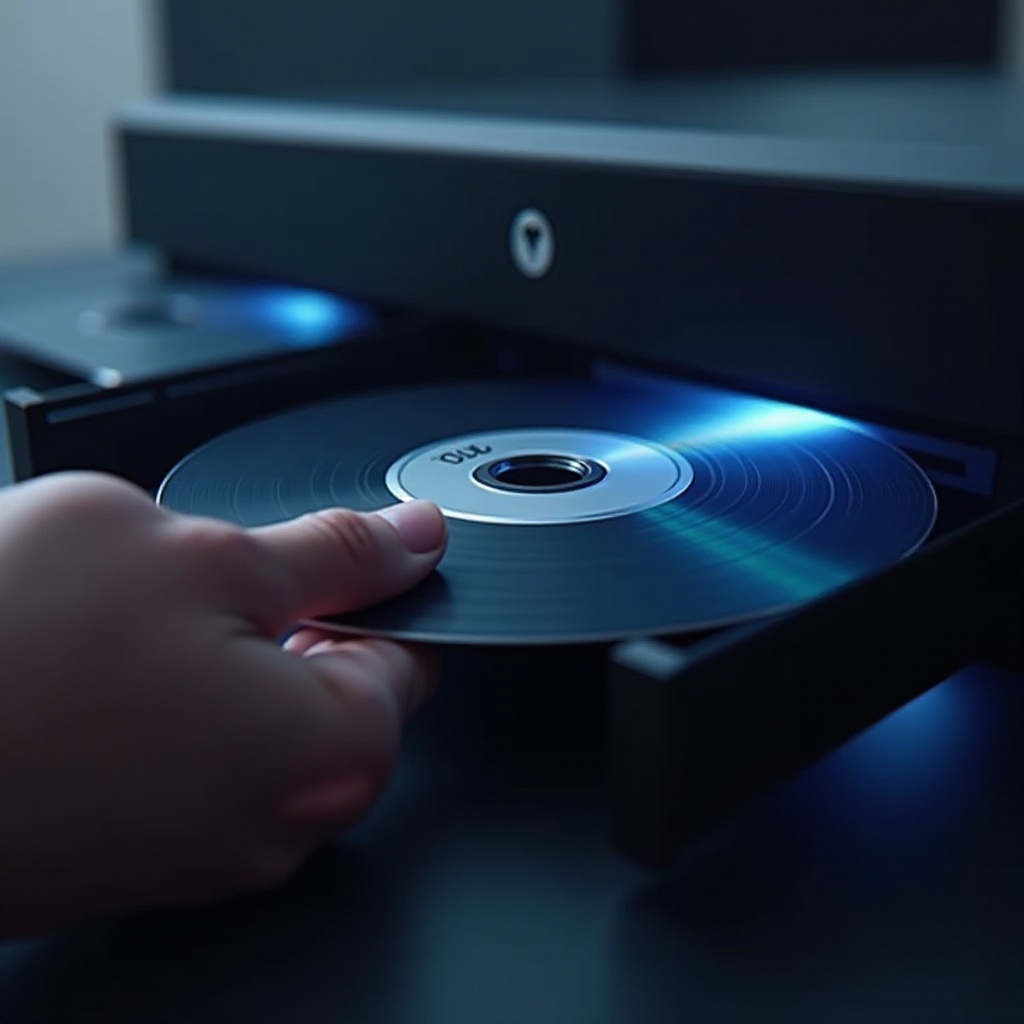
- Disk Care: Handle disks by the edges and store them in cases. Avoid stacking or exposing to heat sources.
- Frequent Updates: Maintain up-to-date system software for compatibility and performance.
With these practices, you’ll reduce disk ejection issues, ensuring a seamless gaming experience.
Conclusion
Mastering disk ejection for your PS4 enhances its longevity and optimizes your gaming sessions. Whether using simple menu commands or troubleshooting more persistent issues, the solutions here equip you for any situation. Regular maintenance and proper handling protect your console from potential damage, ensuring countless hours of enjoyment.
Frequently Asked Questions
How can I manually eject a disk if the eject button is not working?
Use the manual eject screw. Power off the PS4, locate the screw beneath the cover, and turn it counterclockwise with a flat-head screwdriver.
Why won’t my PS4 eject the disk automatically?
This could be due to system software glitches, disk damage, or overheating. Restart your system and check for software updates. Ensure the disk isn’t scratched or dirty.
Can a scratched disk cause ejection problems?
Yes, a scratched or dirty disk can cause read issues, leading to ejection problems. Ensure your disks are clean and handle them properly to prevent damage.