Introduction
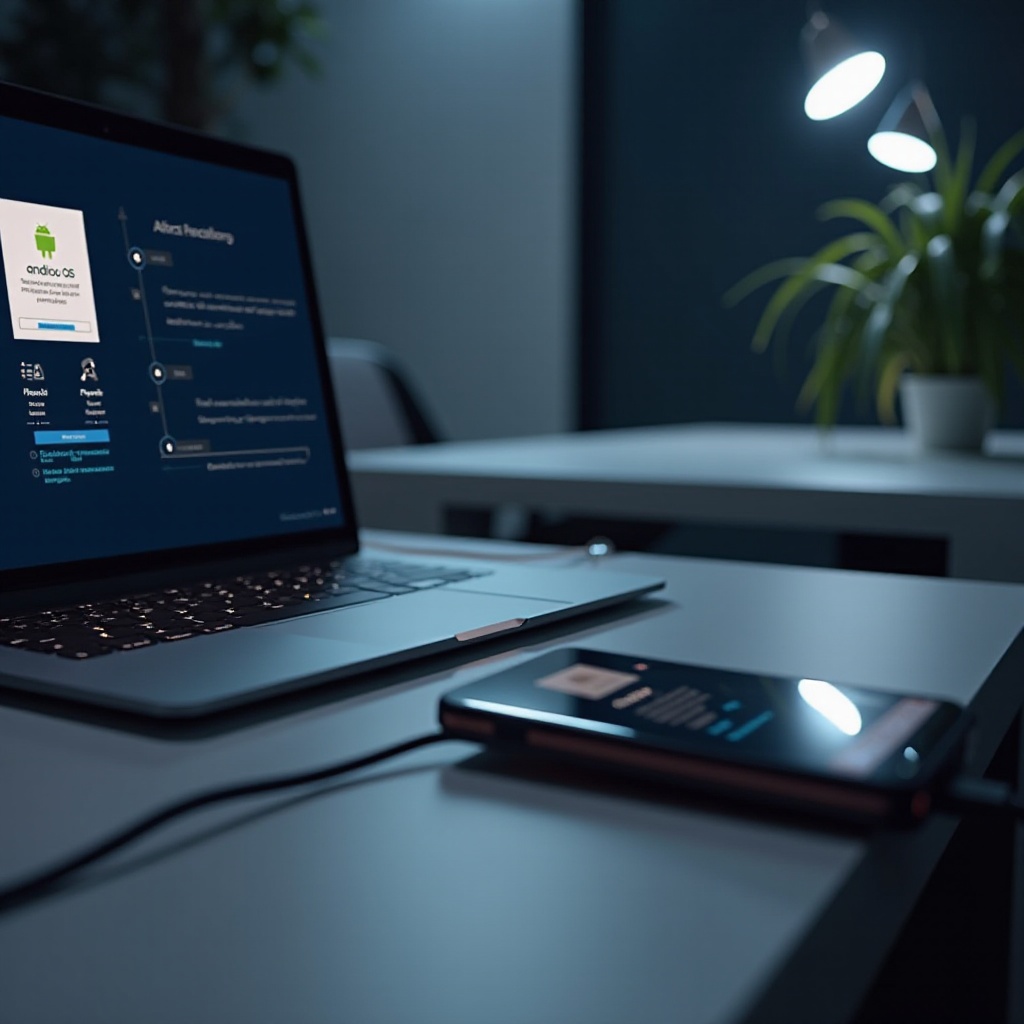
Reinstalling the Android OS is sometimes necessary to fix persistent problems, remove bugs, or update system performance. It may seem daunting, but using a PC can simplify the process and ensure success. This guide will walk you through each step, ensuring your phone is up and running smoothly with the latest Android OS.

Why You May Need to Reinstall Android OS
There are several compelling reasons to reinstall your Android OS. Over time, devices can slow down due to residual files and fragmented data. A fresh installation can improve performance dramatically.
Additionally, reinstalling the OS can solve recurring software issues, like unexpected crashes, freezes, or unresponsive apps. In some cases, it might be the only solution when your device fails to boot up or if you want to change from a custom ROM back to the stock version.
Preparing for the Reinstallation Process
Before you begin, preparation is key to a successful reinstallation. Here’s what you need to do:
- Backing Up Your Data: Ensure you don’t lose important information. Use cloud services like Google Drive or transfer files to an external storage device.
- Gathering Necessary Tools and Software: Essential items include a USB cable, a PC with internet access, and adequate storage for downloading firmware and tools.
- Charging Your Device: Ensure your phone has at least 70% battery before proceeding. Running out of power mid-process can cause significant issues.
Once you have prepared correctly, downloading the correct firmware is crucial.
Downloading the Correct Android OS Firmware
Choosing the correct firmware ensures compatibility and smooth operation. This involves a few critical steps:
- Identifying Your Phone Model: Find your phone’s model number in the settings under ‘About Phone’ to ensure you download the correct firmware.
- Finding Reliable Sources for Firmware: Visit the manufacturer’s official site or trusted forums like XDA Developers for firmware files. Avoid unofficial sites to prevent the risk of malware.
- Safety Tips When Downloading Firmware: Always double-check the files’ compatibility with your model and scan downloads with antivirus software.
With the correct firmware downloaded, let’s proceed to set up your PC.
Setting Up Your PC for Reinstallation
Your PC needs specific configurations and software to detect and communicate with your device properly.
- Installing Required Software and Drivers: Download USB drivers specific to your phone’s brand. Software like Odin (for Samsung devices) or ADB and Fastboot (for other Androids) will be needed.
- Configuring Your PC Environment: Ensure system software such as antivirus programs don’t interfere during reinstallation by disabling them temporarily.
- Enabling USB Debugging on Your Phone: This is crucial for establishing a connection between your phone and the PC. Enable developer options by tapping ‘Build Number’ in settings seven times, then turn on USB debugging.
Now that your PC and phone are ready, you’re set to perform the reinstallation.

Step-by-Step Guide to Reinstalling Android OS
Follow these instructions carefully to reinstall your Android OS.
- Using Odin for Samsung Devices:
- Open Odin on your PC and connect your phone in Download Mode. Enter this mode by pressing the Power, Home, and Volume Down buttons together.
-
Load the firmware files into Odin, then press ‘Start’. Your phone will reboot once installation is complete.
-
Using ADB and Fastboot for Other Android Devices:
- Connect your phone to the PC in Fastboot Mode by pressing the Power and Volume Down buttons.
- Open the command prompt in the ADB directory, type the command ‘fastboot flash all’ followed by the file name.
-
Reboot the device once the process is completed.
-
Common Errors and How to Fix Them:
- If the phone fails to boot, try reinstalling the drivers or rebooting your PC.
- For ‘Device not recognized’ errors, ensure correct USB connections and device drivers.
As you finalize the installation, let’s wrap up the process by setting up your device again.
Finalizing the Reinstallation Process
Once the OS is installed, follow these final steps to bring your device back to full functionality:
- Rebooting and Initial Setup: When your phone restarts, follow the on-screen instructions to complete the setup. Connect to Wi-Fi and log into your Google account.
- Restoring Data from Backup: Restore your files and settings from your backup. This process returns your apps, contacts, and photos.
With your device ready, here’s what we’ve covered.
Conclusion
Reinstalling the Android OS using a PC can seem complex, yet it’s entirely manageable with proper preparation and careful attention to each step. This guide ensures that your device operates smoothly and efficiently. Keeping your software updated and managing your device software regularly can prevent future problems and maintain optimal performance.
Frequently Asked Questions
Is it safe to reinstall Android OS using a PC?
Yes, it is safe if you follow instructions carefully and use the correct firmware. Always back up your data before starting.
What should I do if my phone doesn’t boot up after reinstallation?
Try entering Recovery Mode and clearing the cache partition. If the issue persists, consider re-flashing the firmware or seeking professional support.
Can I reinstall the Android OS without losing data?
Reinstallation typically wipes data, so it’s essential to back up everything before starting the process to prevent data loss.