Introduction
Copying photos on your iPhone is a crucial part of managing and sharing your digital memories. Whether you’re looking to transfer pictures to another device, share them with friends, or simply create backups, understanding the available methods will make these tasks easier. This guide offers straightforward techniques for various scenarios, ensuring you can manage your photos efficiently.
Using the Photos App to Copy Photos
The Photos app on your iPhone is the most direct method for copying images. Here’s how to leverage its features:
-
Selecting Single and Multiple Photos:
To copy a single photo, open the Photos app, locate your picture, and tap it to expand. For multiple selections, navigate to your album or photo library, tap ‘Select’ at the screen’s top-right corner, and choose the desired images. -
Copying and Pasting Within the App:
Once selected, tap the ‘Share’ icon at the bottom left. In the sharing menu, select ‘Copy.’ The images will be stored in your clipboard, ready to paste into texts, emails, or any app supporting image input.
The Photos app simplifies photo copying directly on your device, but what about moving images to other apps?
Copying Photos to Other Apps
For more dynamic sharing, you might want to copy photos into different applications for editing or social media posting:
-
Utilizing the Share Function:
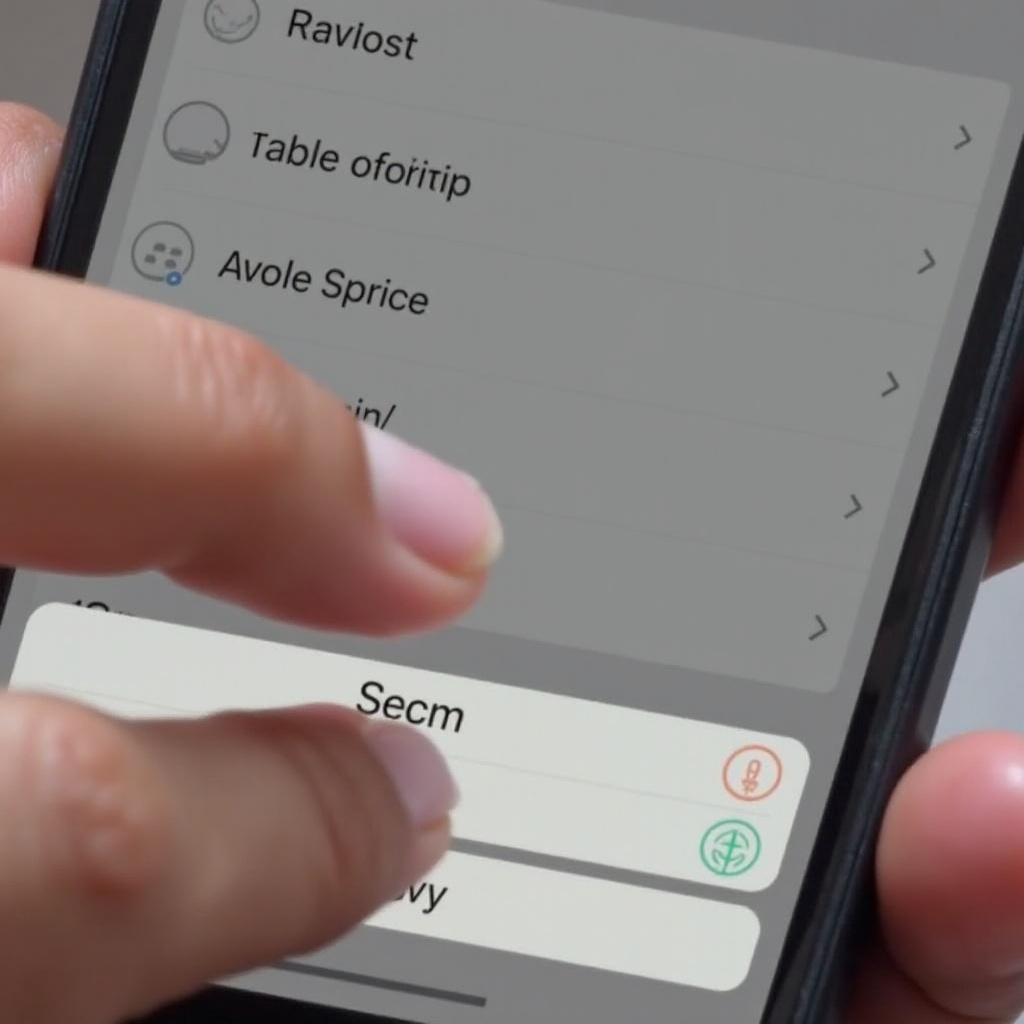
After selecting your photos and pressing the ‘Share’ button, you can send images directly to compatible apps listed in the menu, such as Instagram, Messenger, or editing software. -
Popular Apps for Sharing Photos:
Cloud services like Dropbox and Google Drive provide excellent platforms for storing and sharing photos across various devices. From the Share menu, select your preferred app to begin the upload.
Transferring photos into apps is particularly beneficial for content creators aiming to maintain a seamless workflow. But what if you need to move photos to another iPhone?

Transferring Photos to Another iPhone
Wireless transfers between iPhones offer a convenient solution for quickly sharing images:
-
Using AirDrop for Photo Transfer:
Ensure that both iPhones have AirDrop enabled. With the images selected, tap ‘Share’, then ‘AirDrop’, and choose the recipient’s device. This method retains high image quality and is fast for direct transfers. -
Other Wireless Transfer Options:
iCloud Photo Sharing allows synchronized photo libraries across devices using the same Apple ID. Enable iCloud Photo Library under settings and enjoy automatic syncing to your iPhone, iPad, or Mac.
Quick device-to-device transfer makes collaborative sharing easy. Yet, securing them on your computer is equally important, which we’ll explore next.
Copying Photos to a Computer
Backing up your photos onto a computer is vital for preserving your collection and freeing up iPhone storage:
-
Connecting to a Mac Using Finder:
Use a USB cable to connect your iPhone and Mac. Open Finder, choose your device, and navigate to the ‘Photos’ tab. Check ‘Sync photos to your device from Photos’, select which albums or all photos, then click ‘Apply’. -
Importing Photos on a Windows PC:
Link your iPhone with a USB connection. Open the Photos app on your PC, select ‘Import’, then ‘From a USB device’. Pick your images and decide on a save location. -
Alternative Methods Using Cloud Services:
Automatically back up your photos via Google Photos or Dropbox, accessible on any computer through a browser. Configure these apps on your phone to ensure seamless photo backup.
Securing photos on a computer offers peace of mind and storage flexibility. However, technical hitches may occur during this process.
Troubleshooting Common Photo Copying Issues
Sometimes, issues arise like connection failures or format errors. Here’s how to tackle them effectively:
-
Resolving Connection Problems:
Ensure cable and port integrity if a connection isn’t successful. Consider trying a different cable or port on your computer, and remember to unlock your phone to facilitate data transfer. -
Handling File Format Errors:
Photo formats like HEIC might not open on non-Apple devices. To avoid this, use online converters to transform HEIC to JPEG, or set your iPhone’s Camera to ‘Most Compatible’ mode within settings.
Mastering these troubleshooting techniques will help ensure a smooth experience when managing your photo library.
Conclusion
With the guidelines provided, copying photos on your iPhone becomes a straightforward process. Whether utilizing AirDrop for fast sharing, cloud services for safety, or connecting directly to your computer, each method is designed to meet your needs effectively. Embrace these steps to maintain and secure your digital memories with confidence.
Frequently Asked Questions
How can I copy photos without losing quality?
For high-quality copies, use AirDrop or iCloud as they maintain the original resolution, unlike some social media platforms which compress images.
Is it safe to use third-party apps for copying photos?
Yes, but always choose reputable apps. Check reviews and privacy policies to ensure they don’t misuse your data.
What should I do if my iPhone doesn’t have enough storage?
Free up space by offloading unused apps or use cloud storage solutions to keep your media available without occupying local storage.