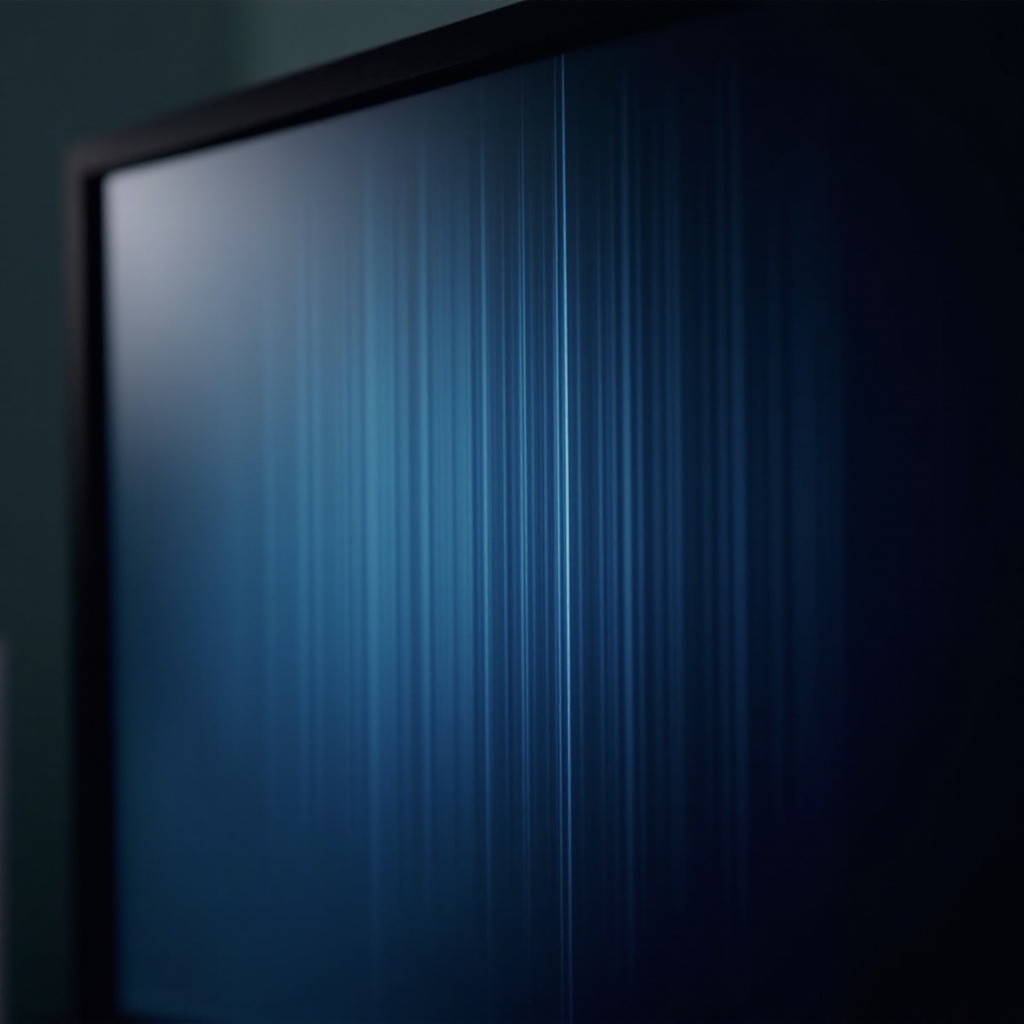
Experiencing faint vertical lines on your Samsung TV can be incredibly frustrating, especially when they distract you from enjoying your favorite shows or movies. These lines may disrupt the viewing experience and could be indicative of underlying issues with your television. In this comprehensive guide, we’ll explore the causes, how to diagnose the problem, provide step-by-step solutions, and offer preventative measures. Let’s begin by understanding what might be causing the faint vertical lines to appear on your screen.
Understanding the Causes of Vertical Lines
Vertical lines on your Samsung TV can result from a variety of issues, ranging from simple connection troubles to more complex internal hardware problems.
-
Manufacturing Defects: Sometimes, vertical lines may appear due to inherent defects in the TV panel or the display. These defects may originate during the manufacturing process and surface only over time as the TV is used.
-
Connection and Cable Issues: Loose or damaged cables can lead to poor connectivity, resulting in faint vertical lines. HDMI cables, in particular, are susceptible to wear and tear over time or might not be properly connected.
-
Firmware and Software Glitches: Outdated firmware or software glitches can also manifest as vertical lines on your screen. Keeping your TV’s software up-to-date is essential for optimal performance.
Understanding these causes sets the stage for accurate diagnosis, enabling you to pinpoint the issue more effectively. Let’s move on to diagnosing the problem.
Diagnosing the Problem
Proper diagnosis is key to identifying the root cause of vertical lines on your Samsung TV. Follow these steps to determine where the issue might lie:
-
Visual Inspection: Start with a visual inspection of your TV. Look for any visible damage on the screen or around connection ports. Sometimes this can provide immediate insights into what’s causing the problem.
-
Running a Picture Test: Make use of the TV’s built-in picture test function. This diagnostic tool can help determine if the issue stems from the TV’s display itself or an external factor, such as a source input.
-
Checking for Loose Connections: Examine all cables and connections. Make sure HDMI and other input wires are securely in place; a loose connection can often be the simplest fix.
By accurately diagnosing the problem, you’ll be in a better position to apply the appropriate solutions. Let’s proceed to the actionable fixes you can try.
Step-by-Step Fixes for Vertical Lines
Once you’ve pinpointed the issue, it’s time to implement possible solutions. The following steps describe various methods for addressing vertical lines on your Samsung TV:
- Basic Fixes: Rebooting and Resetting:
- Turn off your TV and unplug it from the power source for a few minutes. This can reset any temporarily stored data that might be affecting your TV.
-
Plug your TV back in and switch it on. Sometimes, a simple reboot can resolve visual glitches.
-
Checking and Replacing Cables:
- Inspect HDMI and other cables for signs of wear and tear.
- Replace any frayed or broken cables with new ones to improve the connection quality.
-
Confirm that all cables are securely fitted into their respective ports.
-
Updating TV Firmware:
- Access the TV’s settings menu and search for software updates.
- Install any available firmware updates, as these often resolve bugs that may be causing visual issues, including vertical lines.
Implementing these fixes should help improve your TV’s performance. If the problem persists despite these efforts, it might be time to consider seeking professional assistance.
When to Seek Professional Repair
In certain cases, faint vertical lines might indicate issues that require professional repair services. Knowing when to seek professional help can save you time and prevent further damage:
-
Signs of Serious Hardware Issues: Persistent lines even after applying the suggested fixes could signal a hardware problem. This might involve the TV panel, circuitry, or other internal components that require special expertise.
-
Cost vs. Replacement Considerations: Evaluate the cost of repair versus the expense of replacing the television. If repair costs are substantial and your TV is relatively old, investing in a new model might be a more economical choice.
Consulting with a professional ensures that complex issues are addressed correctly, reducing the risk of causing further harm to your television.

Preventative Measures to Avoid Vertical Lines
Preventing issues is always more desirable than having to fix them. Follow these preventative measures to minimize the risk of vertical lines appearing on your Samsung TV in the future:
-
Regular Maintenance Tips: Regularly dust your TV and its ports to prevent the accumulation of dirt, which can affect performance over time.
-
Ensuring Proper Ventilation and Environment:
- Position your TV in a location that prevents exposure to extreme temperatures or direct sunlight.
- Ensure proper ventilation to prevent overheating, which can lead to hardware failures and visual distortions.
Adopting these preventative practices can not only extend your TV’s lifespan but also ensure a clear, glitch-free viewing experience at all times.

Conclusion
Faint vertical lines on your Samsung TV can disrupt your enjoyment, but by understanding the causes, diagnosing the issue accurately, and implementing effective fixes, you can resolve most problems. If necessary, don’t hesitate to seek professional repair for more serious issues. By following these preventive measures, you’ll maintain your TV in good condition and continue to experience pristine picture quality.
Frequently Asked Questions
What should I do if the lines are still visible after following the steps?
If the lines persist after attempting the suggested fixes, consult a professional technician as it may indicate a deeper hardware problem.
Can vertical lines damage my Samsung TV further?
Vertical lines may not cause additional damage but can signal underlying internal issues needing attention. Prompt action can prevent further harm.
How often should I update my TV firmware to prevent issues?
Check for firmware updates every few months or set updates to automatic, if possible, to ensure optimal operation and minimize glitches.