Introduction
Experiencing your Motorola modem lights blinking but no internet connectivity is often perplexing. The various lights on a Motorola modem act as essential indicators of its operational status. Erratic blinking often signals an issue necessitating a quick diagnosis and resolution. This comprehensive guide aims to clarify the meanings of these blinking lights and provide a detailed step-by-step process to restore your internet connection seamlessly.
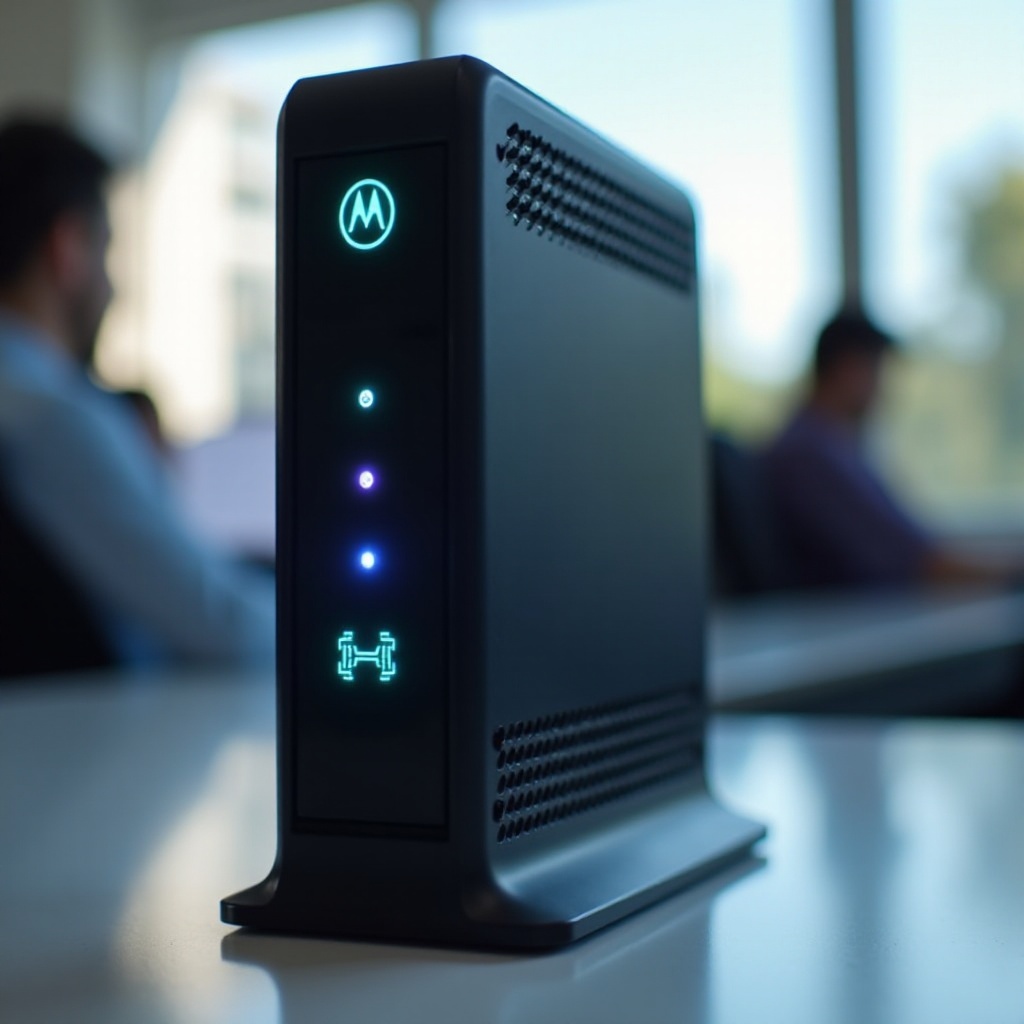
Understanding Motorola Modem Lights Indications
Motorola modems feature a series of lights, each functioning to indicate specific statuses. Grasping these indicators helps you identify potential issues swiftly.
-
What Each Light Means: Typically, Motorola modems comprise power, receive/send, online, and link indicators. Understanding these can expedite problem diagnosis. A solid green power light denotes normalcy, while the receive/send lights manifest data transmission activities. The online light shows connectivity status, and the link light relates to wired or wireless connections.
-
Normal vs. Abnormal Light Patterns: During normal operations, these lights usually remain steady. Intermittent blinking of receive/send lights is typical during substantial data exchanges, whereas a continuously blinking online light often points to connectivity issues.
Understanding these light patterns is fundamental in identifying disconnections. With a clear idea of what each light signifies, you can identify the common causes of these issues more efficiently.
Common Causes of Blinking Lights and No Internet
Knowing the potential origins of the problem is crucial in addressing why your modem lights might blink without providing internet connectivity. Several factors could lead to this issue.
-
Physical Connection Issues: Loose or damaged cables might disrupt connectivity. Check that all Ethernet cables and connections are secure and undamaged.
-
Service Provider Outages: Disruptions from your ISP might result in no internet despite the lights appearing fine. Verify with your provider if any local outages might be impacting your internet.
-
Firmware Glitches: Outdated modem software can lead to performance issues and functionality problems, necessitating updates.
Armed with this understanding, you can now proceed to basic troubleshooting steps targeting these common causes.
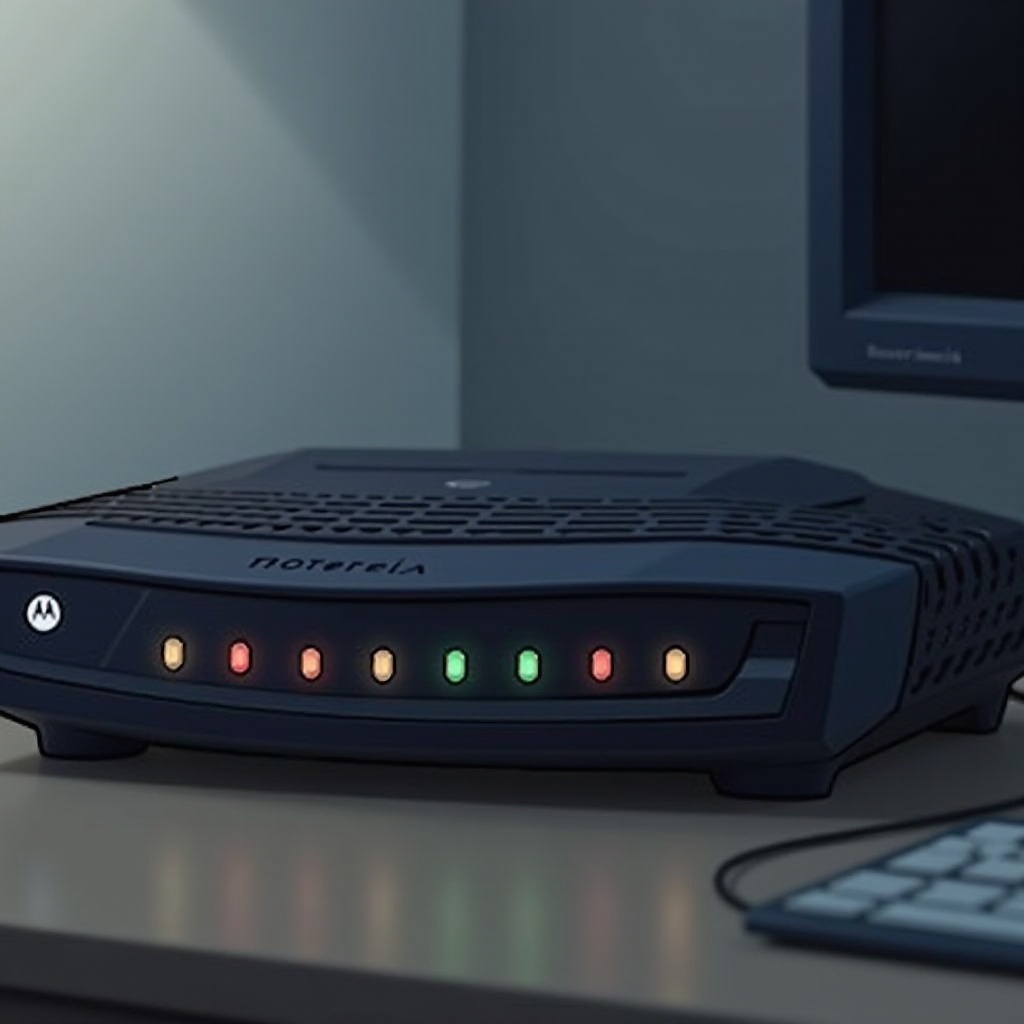
Basic Troubleshooting Steps
Initiating some straightforward troubleshooting steps can often alleviate modem issues. Here are some recommended actions:
-
Checking Physical Connections: Ensure all cables are firmly connected. Examine for wear or damage, replacing cables where necessary.
-
Restarting Your Modem: Rebooting is a simple yet often effective resolution for connectivity problems. Turn off the modem, unhook the power, wait for 30 seconds, then reconnect and power it back on.
-
Confirming ISP Service Status: If connectivity issues persist, verify with your ISP for any service interruptions or local outages affecting your connection.
Completing these basic steps should resolve most issues. However, if problems persist, deeper investigative and corrective measures might be needed, which are covered in the advanced troubleshooting section.
Advanced Troubleshooting Techniques
When basic troubleshooting steps fall short, delving into more advanced diagnostic techniques can help.
-
Accessing Modem Settings: Enter the modem’s settings using its IP address, usually listed on the label or in the manual. This step can aid in diagnosing and correcting configuration problems.
-
Performing a Factory Reset: As a last measure, a factory reset might resolve lingering issues by restoring default settings. Locate the reset button, usually at the back, press and hold it for 10 seconds.
-
Contacting Your ISP for Assistance: If self-troubleshooting fails, reaching out to your ISP’s support team can offer additional insights or the possibility of on-site technical assistance.
These advanced steps are necessary for resolving deeper connection problems, leading to a smoother internet experience when combined with preventive measures.
Preventive Measures for Stable Internet Connection
Securing a steady internet experience extends beyond immediate fixes. Incorporate these preventive strategies:
-
Regular Firmware Updates: Ensure your modem’s firmware is updated to gain from enhancements and fixes provided by manufacturers.
-
Proper Modem Placement: To maintain uninterrupted connectivity, position your modem centrally, away from electronic interference or obstructions.
Implementing these routine practices enhances connection stability and minimizes future issues, ensuring optimal internet performance for your home or office.
Conclusion
By understanding the indicators on your Motorola modem and applying the outlined troubleshooting methods, you can effectively resolve most connectivity issues. Routine maintenance and careful modem placement further minimize future disruptions. For ongoing problems, consulting professional support remains a strategic solution.
Frequently Asked Questions
Why does my Motorola modem keep blinking even after restarting?
Persistent blinking after a restart may signify deeper issues such as configuration errors or ISP-related problems. Further troubleshooting or professional assistance might be necessary.
How can I access my Motorola modem’s settings?
Access modem settings by entering its IP address into a web browser. The modem’s label or manual usually provides this address. Use the default username and password to log in.
When should I consider replacing my modem?
Consider replacing your modem if connectivity issues persist despite troubleshooting and confirming no service disruptions with your ISP. Older models may lack support for current internet standards.