Introduction
Managing digital device use is essential for families who want to maintain a healthy balance between screen time and other activities. Apple’s Screen Time feature on the iPhone allows you to monitor and regulate the time family members spend on their devices. This powerful tool helps set boundaries on app usage, providing insights into daily and weekly device activities.
With Screen Time, parents can guide their children’s smartphone habits to ensure that devices enhance rather than disrupt family life. Let’s explore how to set up Screen Time effectively, creating a safe and balanced digital environment for your family.
Understanding Screen Time on iPhone
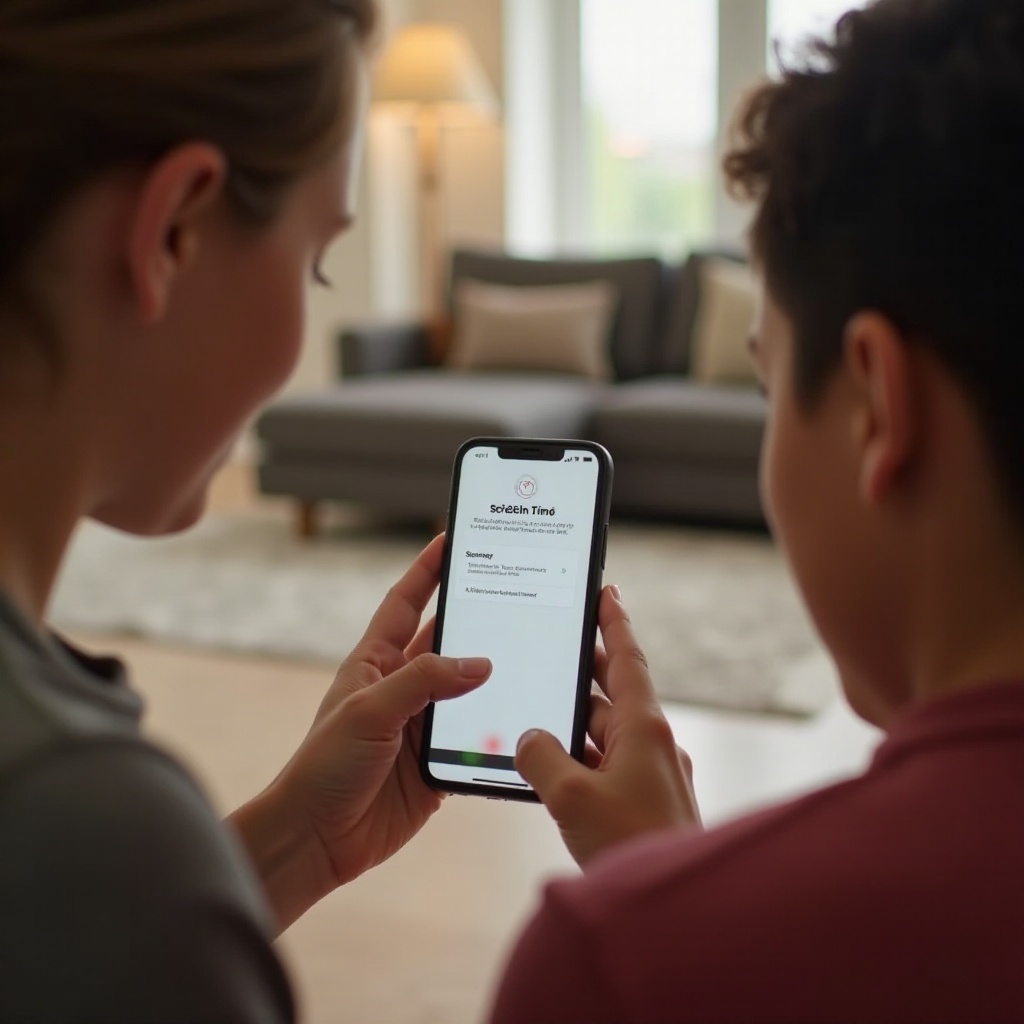
Screen Time is a built-in feature on iOS devices that tracks app usage and helps manage the time spent on iPhones. It provides detailed reports and allows you to control which features or content can be accessed. By setting up Screen Time, you can establish ‘device-free’ times, regulate app usage, and restrict inappropriate content for children.
This tool is particularly beneficial for maintaining oversight of children’s device activities, ensuring a healthy balance. Now, let’s move on to the initial setup process, which will enable you to incorporate these beneficial features right away.
Initial Setup of Screen Time
Setting up Screen Time on an iPhone is straightforward. Follow these steps:
1. Open the ‘Settings’ app on the iPhone.
2. Scroll down and select ‘Screen Time.
3. Tap ‘Turn On Screen Time’ and then ‘Continue.
4. Choose ‘This is My [device]’ or ‘This is My Child’s [device].
For devices used by children, it’s important to set a passcode that only you know. This step ensures that screen time settings remain unchanged by the child.
Once Screen Time is enabled, you can customize its settings to suit your family’s needs, moving toward a more organized digital use.
Configuring Screen Time Settings for Family Members
With Screen Time activated, personalize the settings to manage each family member’s digital interactions effectively:
- Setting Up App Limits:
- Go to ‘Settings’ > ‘Screen Time.
- Tap ‘App Limits’ > ‘Add Limit.
-
Select app categories or specific apps, then define the time limit.
-
Configuring Downtime:
- Navigate to ‘Settings’ > ‘Screen Time’ > ‘Downtime.
-
Enable ‘Scheduled’ and set specific times when app usage should be limited.
-
Content and Privacy Restrictions:
- Access ‘Settings’ > ‘Screen Time.
- Select ‘Content & Privacy Restrictions’ and enable it.
- Customize allowed apps, content ratings, purchases, and privacy settings.
These settings enable you to ensure that the iPhone is used appropriately, offering a mix of necessary activities and leisure, under control. Proper configuration of these settings represents a proactive step towards balanced digital habits.
Monitoring and Managing Screen Time
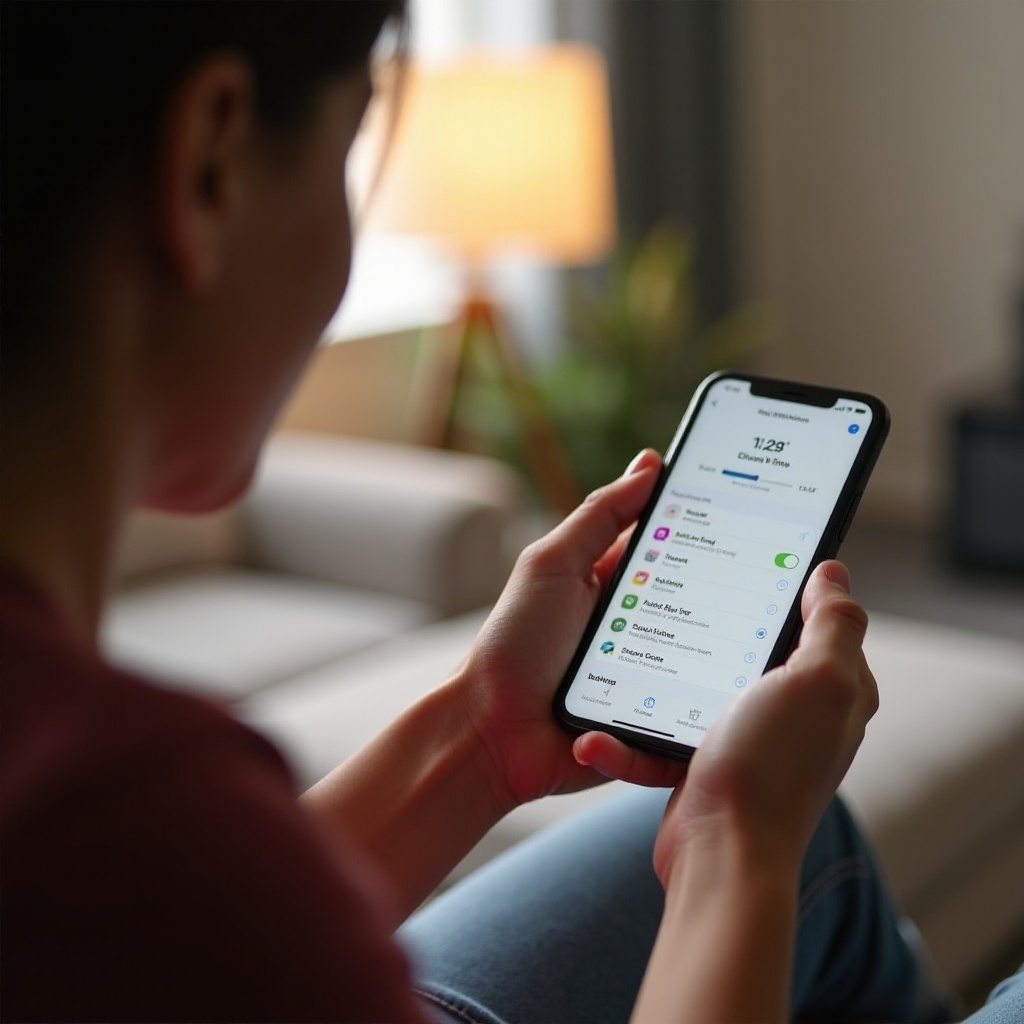
Once configured, the effectiveness of Screen Time hinges on regular monitoring and timely adjustments:
- Analyzing Screen Time Reports:
- View detailed reports by accessing ‘Settings’ > ‘Screen Time.
-
Review summaries to understand how time is spent on the device.
-
Adjusting Settings Based on Usage:
- Assess if current app limits are suitable and refine them as needed.
- Modify downtime hours based on usage patterns, adapting to changing needs.
Regular evaluations help maintain a balanced approach to technology use that grows with your family’s evolving digital habits.
Best Practices for Effective Screen Time Use
Sustaining effective Screen Time management involves defining achievable goals and encouraging conversations around technology use:
- Setting Realistic Goals:
- Set achievable daily or weekly screen time targets for your family.
-
Encourage breaks and offline activities to balance digital interactions.
-
Encouraging Open Communication:
- Engage family members in discussions about the importance of limited screen time.
- Let children participate in setting their own goals, fostering responsibility.
These strategies can help develop a shared understanding and cooperation within the family, leading to healthier digital engagement.
Common Troubleshooting Tips
If you encounter any roadblocks with Screen Time, consider these common troubleshooting tips:
– Make sure all devices have the latest iOS version installed.
– Double-check your Family Sharing setup to ensure all configurations are correct.
– Restart the iPhone if Screen Time isn’t updating properly, as it may refresh the settings automatically.
By addressing these common issues, you can ensure Screen Time functions seamlessly, providing uninterrupted support for managing device use effectively.
Conclusion
Setting up Screen Time for family members on an iPhone is a strategic approach to ensuring balanced digital lives. By establishing appropriate app limits, restricting access to unsuitable content, and fostering healthy communication about tech use, your family can enjoy the benefits offered by technology without falling into the trap of excessive screen time. Screen Time offers not only control but also the opportunity to teach responsible digital habits.
Frequently Asked Questions
How can I set up Screen Time for my child?
To set up Screen Time for your child, go to ‘Settings’, select ‘Screen Time,’ and follow the prompts to activate it for a child’s device.
What should I do if Screen Time isn’t working?
If Screen Time is not functioning correctly, ensure your device is updated, verify Family Sharing settings, and restart the iPhone if necessary.
Can Screen Time be bypassed?
Although robust, children might find ways to bypass Screen Time by resetting the device or exploiting weaknesses. Regular monitoring and updates are key to maintaining its efficacy.