Introduction
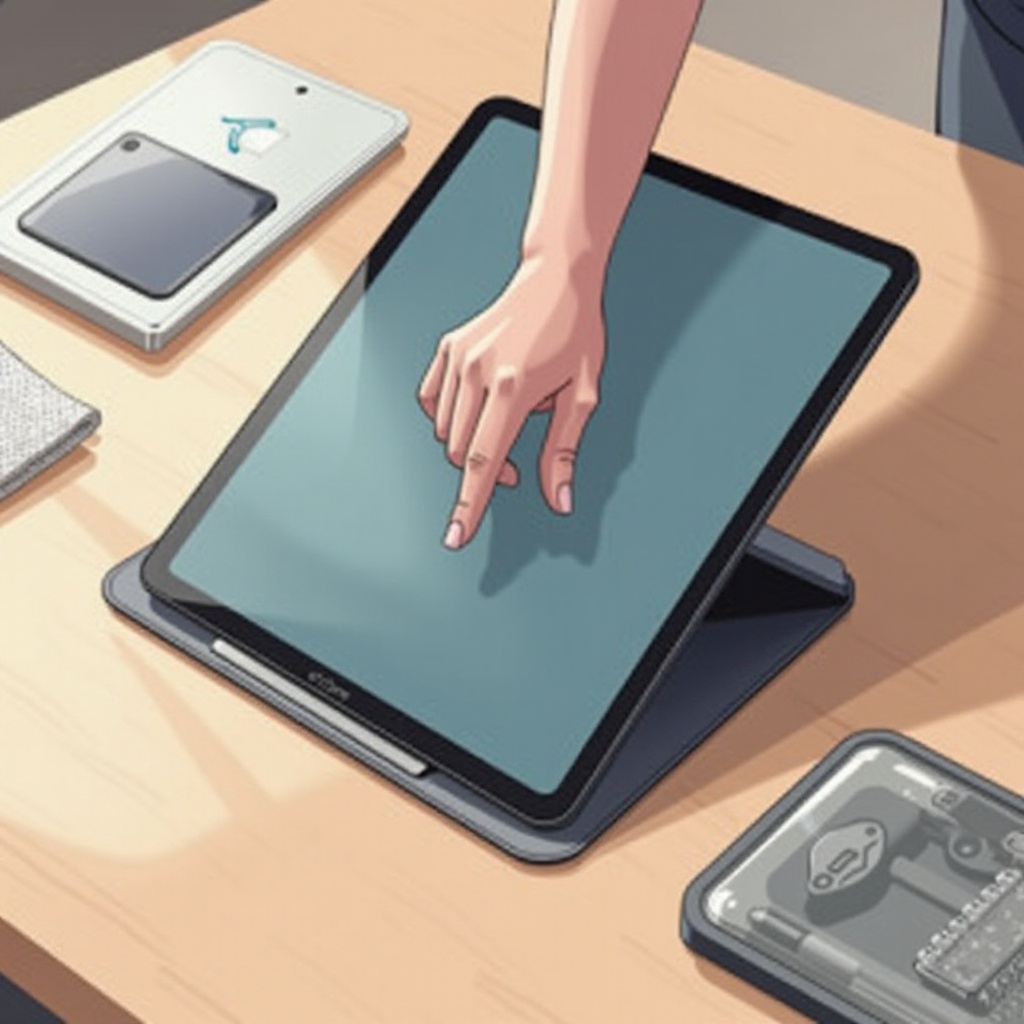
The iPad Pro, a powerhouse for productivity and creativity, can occasionally face touch screen issues. When your touch screen stops working, it disrupts both personal and professional tasks. This guide offers practical solutions to fix these problems, ensuring that your device runs smoothly.

Understanding the Problem
To effectively troubleshoot, it’s essential to grasp the root causes of touch screen failures. Problems often stem from either software glitches or hardware malfunctions. Identifying the correct cause is crucial for applying the right solution.
-
Common Causes of Touch Screen Failures: Issues might arise from temporary software bugs, outdated applications, or even physical damage. Environmental factors such as humidity or extreme temperatures can also impact screen performance.
-
Differentiating Software vs. Hardware Issues: Software-related issues typically involve temporary freezes or glitches, easily resolved through device restart or updates. Hardware problems, indicating physical damage, typically require a professional diagnosis.

Basic Troubleshooting Steps
Sometimes, the simplest solutions are the most effective for addressing touch screen issues. Here’s how to tackle common software-related problems:
- Cleaning the Touch Screen: Smudges and dirt can impair screen responsiveness. Use a microfiber cloth to gently clean the screen, avoiding harsh chemicals and excessive moisture.
- Rebooting Your iPad Pro: Restarting the device can fix minor glitches. Press and hold the power button until the slider appears, then slide to turn off. Wait a few seconds, then power the device back on.
If these basic steps don’t solve the problem, it’s time to consider more advanced troubleshooting.
Advanced Troubleshooting Techniques
For persistent touch screen issues, advanced techniques may be necessary. These methods address deeper software concerns that could affect device performance:
- Performing a Soft Reset: A soft reset can resolve stubborn software issues. Press and hold both the power and home buttons until the Apple logo appears. This reset doesn’t erase your data.
- Updating iOS and Apps: Running outdated software can cause performance problems. Ensure both your iPad’s operating system and all apps are up-to-date. Check for iOS updates under Settings > General > Software Update, and update apps via the App Store.
- Resetting All Settings: If issues persist, consider resetting all settings. Navigate to Settings > General > Reset > Reset All Settings. This won’t delete personal data but may resolve conflicts affecting screen functionality.
If these methods fail to restore your screen’s functionality, you may need professional assistance.
When to Seek Professional Help
Persistent touch screen dysfunction might indicate a hardware problem needing professional repair.
- Identifying Hardware Damage: Inspect your device for visible damage or water exposure. These signs usually necessitate professional intervention for diagnosis and repair.
- Using Apple Support Services: Contact Apple Support or visit an Apple Store for reliable repairs. Professionals can accurately diagnose and solve your touch screen issues, potentially involving parts repair or replacement.
While professional help might be needed for serious issues, adopting preventive strategies can protect your device.
Preventive Measures for Future Issues
Avoiding future touch screen problems requires careful handling and regular software updates. Adopting good habits ensures your iPad Pro remains in peak condition.
- Best Practices for Screen Care: Protect your device with cases and screen protectors to prevent physical damage. Keep it away from liquids and extreme temperatures, which can harm the touch screen.
- Regular Software Maintenance: Keep your software updated and periodically remove unnecessary apps. Regularly check for updates to ensure smooth performance.
Conclusion
Touch screen issues can be frustrating and disruptive. However, with the understanding and application of these troubleshooting steps, you can resolve most issues and maintain your iPad Pro’s high performance. Regular device maintenance and preventive measures will further enhance its reliability.
Frequently Asked Questions
How do I know if it’s a hardware issue?
Visible damage like cracks or a non-responsive screen after a reset usually indicates a hardware issue.
Can I fix the touch screen myself?
Basic troubleshooting is possible, but leave hardware repairs to professionals to prevent further damage.
Is visiting an Apple Store the only option?
While Apple Stores offer reliable repairs, certified third-party repair services are also available.