Introduction
USB-C ports in MacBooks play an essential role in daily activities, facilitating quick charging, data transfer, and the connection of various accessories. When a USB-C port malfunctions, it can disrupt your workflow and productivity. This guide provides step-by-step solutions to help you fix common USB-C port issues, ensuring that your MacBook continues to operate smoothly.
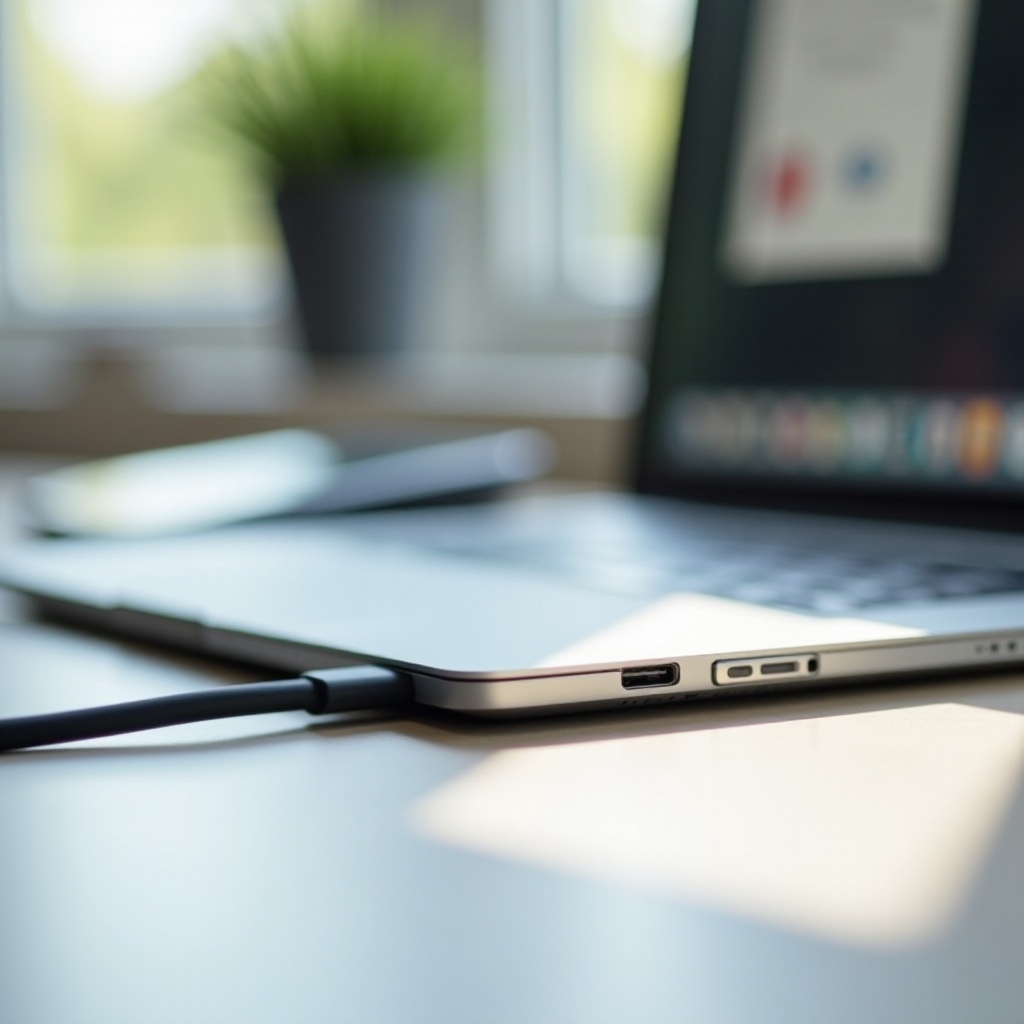
Understanding USB-C Port Problems
Identifying USB-C port problems is crucial to finding an effective solution. Common symptoms include devices not charging, connection instability, or peripherals not being recognized. These issues often stem from dirt buildup, faulty cables, firmware issues, or internal hardware failures. By understanding the root causes, you can address these problems swiftly and efficiently. With this foundation, we can now move on to initial troubleshooting measures designed to solve these basic issues.

Initial Troubleshooting Steps
Begin by executing these basic checks to potentially resolve the problem:
1. Clean the Port: Use a toothpick or compressed air to remove any dust and debris from within the port.
2. Test with Different Cables: Try using a different USB-C cable to ensure the issue isn’t with the cable itself. Testing with a different USB-C port, if available, can also confirm whether the problem is isolated.
These preliminary checks can often resolve minor connectivity issues without requiring further measures. However, if problems persist, delving into the software side might provide more answers.
Software Solutions to Try
Software glitches can sometimes be the culprit behind USB-C port issues. Here are some software solutions worth trying:
1. Update macOS: Navigate to System Preferences > Software Update and ensure your system software is up-to-date. Updates often include fixes for connectivity issues.
2. Reset SMC and PRAM/NVRAM: These resets can resolve a host of issues, including USB-C port malfunctions. Follow Apple’s instructions for resetting these components based on your MacBook model.
3. Run Apple Diagnostics: Restart your MacBook while holding the D key to initiate diagnostics. This tool can help identify hardware issues that software adjustments might overlook.
Software solutions are effective at addressing many common problems, but if you still face issues, more advanced troubleshooting steps may be necessary.
Advanced Troubleshooting Steps
For persistent problems, consider these advanced troubleshooting techniques:
1. Analyze System Information: Access ‘System Information’ from the Apple menu to review what is detected on your MacBook’s USB bus. This could help identify devices causing trouble.
2. Use Terminal Commands: Advanced users can use Terminal commands such as ‘system_profiler SPUSBDataType’ to retrieve detailed information about connected USB devices.
3. Check for Hardware Conflicts: Disconnect all external devices and reconnect them one at a time to identify any device causing a conflict.
If these steps do not solve the problem, it might be time to consider repair or replacement options to restore full functionality to your MacBook.

Repair and Replacement Options
When troubleshooting proves ineffective, you might need to explore repair or replacement:
1. DIY Repair: Only attempt this if you’re confident in your technical skills, as improper handling can void warranties.
2. Apple’s Repair Services: Visit an Apple Store or authorized service provider for a professional diagnosis and repair. Certified technicians can offer precise solutions.
Finding the right solution for your situation ensures your MacBook returns to full operational capacity. Next, it’s essential to practice preventive care.
Maintaining Your USB-C Port
Preventing future problems is vital for continued MacBook reliability:
– Regular Cleaning: Keeping ports clean and dust-free promotes strong connections.
– Gentle Handling: Avoid pulling cables forcefully and consider cases to protect ports from physical damage.
Consistently applying these maintenance tips can reduce the likelihood of requiring repairs and extends the life of your ports. We’ll wrap up with key takeaways on keeping your MacBook in optimal condition.
Conclusion
Addressing USB-C port issues on a MacBook can initially seem daunting, but with the right approach, these problems are often fixable. By identifying symptoms, ruling out common causes, and following systematic steps, you can restore your device’s functionality. Regular maintenance further ensures these problems don’t recur, keeping your MacBook as a dependable tool.
Frequently Asked Questions
What should I do if my USB-C port still isn’t working after trying these fixes?
If no solution works, it’s best to contact an Apple Store or authorized service provider for professional assistance.
How often should I clean my USB-C port?
Regular cleaning every few months is advisable. Clean immediately if you experience connectivity issues.
Can a faulty USB-C port affect my MacBook’s performance?
Yes, a faulty port can impair charging and connectivity with peripherals, impacting overall MacBook performance.